Geeks in Phoenix

Geek Blog


How to disable or manage Notifications in Windows 11

Windows 11 brings several enhancements compared to its predecessor, including a redesigned interface that prioritizes user experience and productivity. Among the ongoing features that can sometimes be distracting are notifications. Although designed to keep you informed, they can interrupt your workflow. Fortunately, Windows 11 makes it easy to manage notifications, enabling users to customize their experience. Here's how to disable or manage notifications in Windows 11.

How to disable or manage Notifications in Windows 11

Before diving into the steps to manage notifications, it's essential to understand what they are. Notifications in Windows 11 inform users about important events, such as messages from applications like Microsoft Teams or Outlook, reminders, system updates, and more. While useful, they can quickly become overwhelming, particularly during intensive work sessions.

Notifications can also be used to display malicious ads from a running browser via a rogue extension. You can turn off notifications for that browser in the app's Notifications section. Clearing the browser cache and restarting the browser typically removes any rogue extensions.

Access the Notifications settings

To manage notifications in Windows 11, you first need to access the Notification settings:

  1. Left-click on the Start Windows logo key button to bring up the Start menu.
  2. In the list of pinned apps on the Start menu, left-click on Settings (gear icon).
  3. In the left-hand column, left-click on System.
  4. In the right-hand column, left-click on Notifications.

Manage Notifications

Once you're in the Notifications settings, you can easily adjust your notification preferences. Follow these steps to turn off notifications:

  1. Disable Notifications completely: At the top of the Notifications menu, you'll see a toggle switch labeled Notifications. To turn off all notifications, switch it to the Off position.
  2. Turn off specific app Notifications: If you don’t want to turn off notifications entirely but wish to minimize distractions, you can turn off notifications for specific applications. Scroll down the notifications settings to find a list of apps that can send notifications. For each app, you can toggle notifications on or off.

Customize Notification banners and sounds

If you decide to keep notifications enabled but want to customize how they appear, you can adjust a few settings:

  1. Show notification banners: In each app's notification settings, you can turn notification banners on or off. A banner appears at the top right of your screen when a notification is received. Toggle this setting according to your preferences.
  2. Show notifications in notification center: You can also choose whether to allow notifications to appear in the notification center (the section that appears when you click the notification icon in the Taskbar). In the app settings, toggle the Show notifications in notification center option to keep notifications visible or minimize interruptions.
  3. Play a sound when a notification arrives: If the notification sound is distracting, you can turn it off for that specific app. Look for the Play a sound when a notification arrives setting and toggle it as desired.
  4. Priority of notifications in notification center: Here, you select between Top, High, or Normal.

Focus Assist for Do Not Disturb mode

If you are looking for a more temporary solution to avoid interruptions, Windows 11 offers a feature called Focus Assist, which serves as a Do Not Disturb mode. Here’s how to enable it:

  1. Left-click on the Start Windows logo key button to bring up the Start menu.
  2. In the list of pinned apps on the Start menu, left-click on Settings (gear icon).
  3. In the left-hand column, left-click on System.
  4. In the right-hand column, left-click on Focus.

Here, you can start a Focus Session and set its duration. You can also toggle on or off the following features:

  • Show the timer in the Clock app.
  • Hide badges on Taskbar apps.
  • Hide flashing on Taskbar apps.
  • Turn on do not disturb.

Using Focus Assist is an excellent way to manage notifications without turning them off entirely.

While disabling notifications can streamline workflows, it is essential to stay informed, especially about system updates and important application messages. Therefore, find a balance that allows you to work efficiently while still receiving necessary alerts.

Consider periodically checking which notifications are active, tailoring them to your current tasks, and making changes as your workload evolves. Managing your notification settings helps ensure you don't miss critical alerts that could affect your productivity.

Managing notifications in Windows 11 is straightforward and offers users several customization options. Whether you choose to turn off all notifications, disable specific app notifications, or use Focus Assist to minimize disruptions, you can tailor your Windows experience to suit your needs. By following these steps, you can create a more focused and productive working environment, free from unnecessary distractions.

Tips for boosting productivity in Windows 11

Updated November 9, 2025

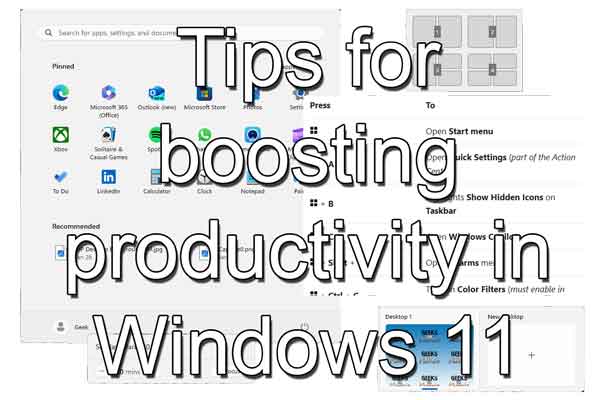
Are you looking to boost your productivity on Windows 11? With its sleek design and enhanced functionality, Windows 11 provides a range of features and tools that help you work more efficiently. In this article, we'll explore some tips and tricks to help you get the most out of your Windows 11 experience while improving your productivity.
Tips for boosting productivity in Windows 11

Start menu

The Start menu is Windows 11's central hub, and customizing it can help you quickly access your most frequently used apps and files. You can rearrange, resize, and pin tiles to the Start menu to create a personalized layout that suits your workflow. This can save you time and improve your efficiency by reducing the time spent searching for apps and files.

How to personalize the Start menu in Windows 11

Virtual desktops

One of the most useful features of Windows 11 is the ability to create and manage virtual desktops. This feature allows you to create multiple desktops for different tasks and switch between them easily. For example, you can have one desktop for work-related tasks and another for personal use.

This feature can help you stay focused and organized, reducing distractions and boosting productivity. Additionally, you can set a unique background for each desktop to quickly identify your current desktop.

How to create multiple desktops in Windows 11

  1. Left-click on the Task view icon Task view icon on the Taskbar on the Taskbar and select New desktop.
  2. Open the programs you want to use on that desktop.
  3. Left-click on the Task view icon Task view icon on the Taskbar again to switch between desktops.

How to set the background for a desktop

  1. Right-click on the desktop you want to change and select Choose background.
  2. Choose an image from the recent images or left-click on Browse photos to select an image.

Keyboard shortcuts

Keyboard shortcuts are a quick and easy way to perform tasks in Windows 11 without having to navigate through menus and options. Learning a few essential keyboard shortcuts can save you time and boost your productivity. For example, press the Windows logo key Windows logo + D to minimize all windows and go to the desktop, or press the Windows logo key Windows logo + E to open File Explorer.

Windows logo key shortcuts for Windows 11

My favorite left-hand Windows keyboard shortcuts

You can create keyboard shortcuts for items on your Desktop.

Everything you wanted to know about Windows shortcuts

You can also create custom keyboard shortcuts using the Keyboard Manager app inside the free Microsoft PowerToys.

Free Microsoft PowerToys for Windows 10 and Windows 11

Focus assist

Focus assist is a feature that blocks notifications and alerts while you're working on a task, reducing distractions and helping you stay focused. You can customize Focus assist settings to allow specific notifications or set it to turn on automatically during specific times or when you're presenting. This can help improve your productivity by reducing interruptions and allowing you to focus on the task at hand.

When you enable Focus assist, a timer will appear on the screen, the do not disturb button will turn on, apps in the Taskbar will not flash to get your attention, and badge notifications in the Taskbar will be turned off. There are several ways to start Focus assist in Windows 11.

How to start Focus assist from the Notiification center

  1. Left-click on the Notification icon Notification icon on the Windows 11 Taskbar(bell) on the right end of the Taskbar
  2. Adjust the length of time if you like, and then left-click on the Focus button.

How to start Focus assist from Settings

  1. Left-click on the Start button Windows logo to bring up the Start menu.
  2. In the list of pinned apps on the Start menu, left-click on Settings.
  3. Left-click on the System category in the left-hand column.
  4. Scroll down the right-hand column and left-click on Focus.

How to start Focus assist from the Clock app

  1. Left-click on the Start button Windows logo to bring up the Start menu.
  2. In the upper right-hand corner of the Start menu, left-click on All apps.
  3. Scroll down the list of programs and left-click on Clock.

Snap layouts and Snap groups

Windows 11 includes a new feature called Snap layouts and Snap groups that makes it easier to organize and manage multiple windows on your screen. Snap layouts allow you to quickly arrange your windows in predefined layouts, while Snap groups let you save and restore groups of windows for specific tasks. This can help you work more efficiently by reducing the time spent resizing and rearranging windows.

How to open Snap layouts

To open the Snap layout box, select the open program window and do either:

  • Press the Windows logo key Windows logo + Z
    or
  • Hover your mouse cursor over the Minimize or Maximize button

When you Snap every space with selected windows, this then becomes a Snap group.

Taskbar

The Taskbar in Windows 11 is more customizable than ever. It lets you pin your most-used apps and files for quick access and shows only the apps you need, reducing clutter and improving productivity.

You can also easily add an existing shortcut to the Taskbar by right-clicking on almost any shortcut on the Start menu or Desktop and selecting Pin to taskbar. Additionally, you can use the Taskbar to access the Start menu, search, and virtual desktops, making it a central hub for your workflow.

Widgets

Windows 11 includes a new Widgets feature that provides quick access to news, weather, and other information. You can customize the Widgets to show only the information you need, making them useful tools for staying up-to-date on the latest news and events. This can help improve your productivity by reducing the time spent searching for information.

In conclusion, there are many ways to improve productivity on Windows 11. By using virtual desktops, customizing your Start menu, using keyboard shortcuts, enabling Focus assist, using Snap layouts and Snap groups, utilizing the Taskbar, and using the Widgets feature, you can work more efficiently and get more done in less time. By implementing these tips and tricks, you'll be well on your way to becoming a Windows 11 power user.

Free computer diagnostics

Repairing a PC can sometimes be expensive, and that is why we offer free basic in-shop diagnostics. Give one of our professional and experienced technicians a call at (602) 795-1111, and let's see what we can do for you.

Check out our reviews

Geeks In Phoenix LLC, BBB Business Review

This business is BBB Accredited

Customer service is #1

Here at Geeks in Phoenix, we take pride in providing excellent customer service. We aim to give the highest quality of service  from computer repair, virus removal, and data recovery.

Bring your computer to us and save

Repairing a computer can be time-consuming. That is why we base our in-shop service on the time we work on your computer, not the time it takes for your computer to work! From running memory-checking software to scanning for viruses, these are processes that can take some time.

Contact us

If you have any questions, please feel free to give us a call at (602) 795-1111  and talk with one of our Geeks. Or you can send us a message from our contact page , and one of our Geeks will get back to you as soon as possible. Or you can stop by and see us. Here are our hours and location.

Like Geeks in Phoenix on Facebook

Follow Geeks in Phoenix on Twitter

Watch Geeks in Phoenix on YouTube