Windows 11, with its array of impressive features, includes Copilot, an Artificial Intelligence (AI) tool. While this may be a boon for some, others might have concerns about its presence on their computer. If you're among the latter, here's a guide on what Copilot features you can turn off inside Windows 11.

Before I go any further, one question about Copilot needs to be answered: "Can Copilot be uninstalled?" The answer is no; it's built into Windows 11. But you have one option: turn off Copilot as much as possible, as it's impossible to remove it altogether.
There are now some registry hacks on the Internet for disabling Copilot. You can try them, but from everything I have read, they may or may not work. If I know Microsoft, they will fix the ability to disable Copilot in the registry in a future update. I've seen it happen before.
There is also a Group Policy hack out on the Internet that is supposed to disable Copilot. Still, the problem is that you can only edit the Group Policy in the Professional and Enterprise versions of Windows 11. Windows 11 Home users cannot modify the Group Policy.
With CPU vendors (Intel and AMD) developing processors with special areas for AI, AI is not going away. You can bet that Microsoft will take advantage of these new AI-enabled processors to run Copilot.
Microsoft introduced Copilot as an AI assistant integrated into Microsoft 365 and Windows 11, including Microsoft Edge. While this may seem helpful, some users prefer to turn it off for privacy or performance reasons.
Turning off Copilot features in Windows 11 is a straightforward process that can be completed in just a few clicks. Whether you're concerned about privacy or want to boost your PC's performance, turning off Copilot is a simple and effective solution.
If you wish to clear the data Copliot has collected, you can do so by resetting Copilot. You can even restrict what optional data Windows 11 sends back to Microsoft.
How to turn off Copilot in Microsoft Edge
- Left-click on the Microsoft Edge (wave) icon on the Taskbar.
- Left-click on the three (3) horizontal dots (...) in the upper right-hand corner and select Settings.
- In the left-hand column select Sidebar.
- In the right-hand column select Copilot.
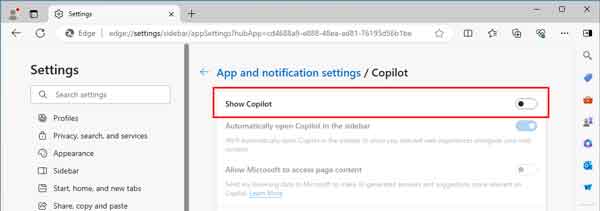
- Toggle the Show Copilot switch to the off position.
How to turn off Copilot on the Taskbar
- Left-clicking on the Start button
 to bring up the Start menu.
- In the list of pinned apps on the Start menu, left-click on Settings.
- In the left-hand column, left-click on Personalization.
- In the right-hand column, left-click on Taskbar.
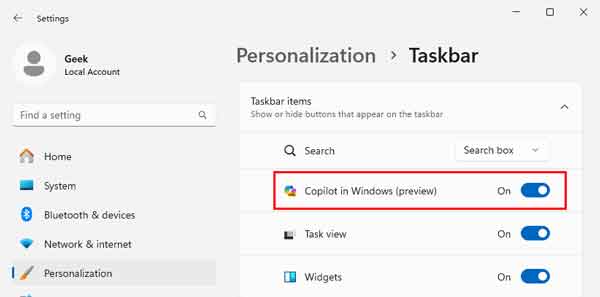
- In the right-hand column, switch off Copilot in Windows (preview).
How to terminate, reset, or repair Copilot inside of Windows 11
- Left-clicking on the Start button to bring up the Start menu.
- In the list of pinned apps on the Start menu, left-click on Settings.
- In the left-hand column, left-click on Apps.
- In the right-hand column, left-click on Installed apps.
- The right-hand column displays a list of all the installed apps. Find Microsoft Copilot, left-click on the three (3) horizontal dots (...) on the right, and select Advanced options.
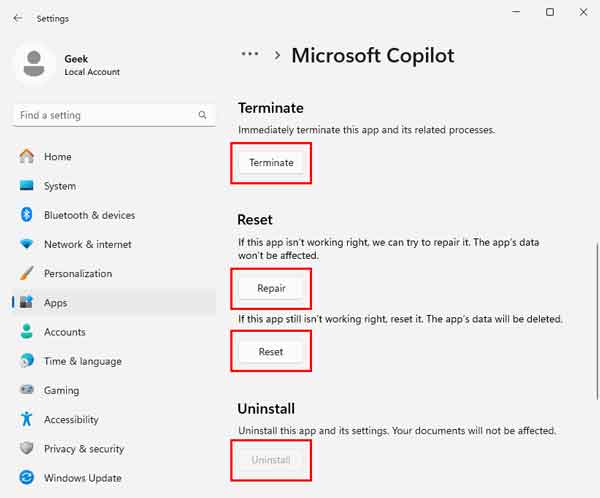
- In the right-hand column, you will find buttons that allow you to Terminate, Repair, and Reset. You will notice that the Uninstall option is greyed out.
How to turn off optional data collection inside of Windows 11
- Left-clicking on the Start button to bring up the Start menu.
- In the list of pinned apps on the Start menu, left-click on Settings.
- In the left-hand column, left-click on Privacy & Security.
- In the right-hand column, left-click on Diagnostics & feedback.
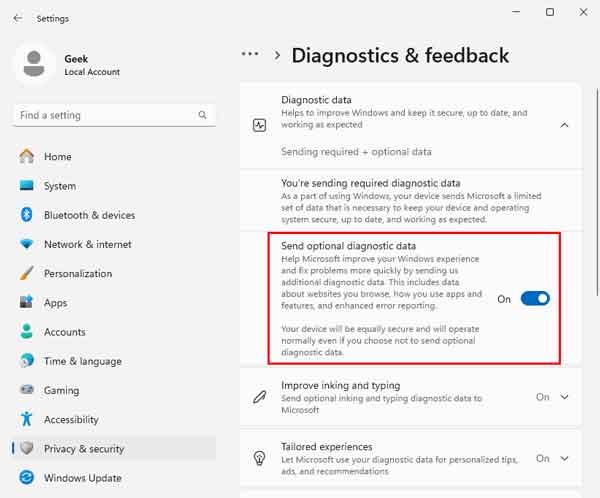
- In the Diagnostics & feedback section, you'll see an option called Send optional diagnostic data.
e0c9a88b-4553-4072-9526-0859b08c79f7|0|.0|96d5b379-7e1d-4dac-a6ba-1e50db561b04