Geeks in Phoenix

Geek Blog


Essential tips for optimizing storage in Windows 11

Windows 11 introduces an array of features and tools intended to enhance user experience, including its storage management capabilities. As digital storage continues to grow in size and complexity, effectively managing this resource is crucial for ensuring optimal system performance. In this article, we will delve into some essential tips for optimizing storage in Windows 11.

Essential tips for optimizing storage in Windows 11

Before diving into optimization strategies, it’s essential to familiarize yourself with the built-in storage features of Windows 11. The operating system comes equipped with a redesigned Storage menu, making it easier to view and manage your storage resources.

How to get the Storage menu

  1. Left-click on the Start Windows logo key button to bring up the Start menu.
  2. In the list of pinned apps on the Start menu, left-click on Settings.
  3. In the left-hand column, left-click on System.
  4. In the right-hand column, left-click on Storage.

Here, you'll find a comprehensive overview of your storage usage, including system and reserved files, installed apps, temporary files, and other categories.

Analyze storage usage

The first step in optimizing storage is understanding what is consuming space. In the Storage settings, Windows 11 presents a breakdown of your storage utilization. By selecting different categories (like Installed apps, Temporary files, and others), you can identify large files or applications that may no longer be necessary.

Another way of understanding what is consuming your drive space is using a graphic visualization tool that uses blocks in a treemap to display the contents of a drive. This way, you can see what folders and files are taking up the most space.

See what your drive contains with Space Sniffer

Uninstall unused applications

Once you’ve identified space-hogging applications, consider uninstalling those that are no longer needed. You can do this from the same Storage settings or through the Installed apps menu.

How to get the Installed apps menu

  1. Left-click on the Start Windows logo key button to bring up the Start menu.
  2. In the list of pinned apps on the Start menu, left-click on Settings.
  3. In the left-hand column, left-click on Apps.
  4. In the right-hand column, left-click on Installed apps.

Look for programs that you rarely use and uninstall them to clear up significant amounts of space.

Clean up temporary files

Temporary files can accumulate rapidly and take up valuable storage space. Windows 11 provides a straightforward method to remove these files through the Storage settings. Click on Temporary files, and you will see what can be safely removed, including system-created files, browser caches, and old downloads. Cleaning these up can free up substantial storage.

Use Storage Sense

Windows 11 offers a feature called Storage Sense that automates the process of managing storage. You can enable it in the Storage settings. Storage Sense can automatically delete temporary files, old Windows installation files, and empty the Recycle Bin on a schedule that you specify.

How to get to Storage Sense

  1. Left-click on the Start Windows logo key button to bring up the Start menu.
  2. In the list of pinned apps on the Start menu, left-click on Settings.
  3. In the left-hand column, left-click on System.
  4. In the right-hand column, left-click on Storage.
  5. In the right-hand column, left-click on Storage Sense.

This feature is particularly helpful for users who may forget to perform regular cleanups manually.

Offload files to the cloud

Utilizing cloud storage is an excellent way to free up space on your local drive. Windows 11 is integrated with OneDrive, allowing you to back up your Desktop, Documents, and Photos seamlessly. By storing files in the cloud, you can access them from any device and share them easily. Windows 11 also has a feature called Files On-Demand, which lets you see files in your OneDrive without downloading them, thereby saving local storage.

Manage downloads and media files

Over time, downloaded files, photos, and videos can take up significant space. Regularly go through your Downloads folder and delete files you no longer need. Additionally, consider transferring media files (like photos and videos) to an external storage device or cloud service.

Utilize external storage solutions

For users with extensive data needs, maintaining an external storage solution can alleviate the burden on internal drives. External drives provide an excellent way to store large files, backups, or even entire libraries of media content. Using external storage not only extends your overall storage capacity but also improves system performance by reducing the load on primary drives.

Optimize your hard drive

If you're using a traditional Hard Disk Drive (HDD), periodic defragmentation can help improve performance. Windows 11 includes a built-in utility to defragment and optimize your drives.

How to get to Defragment and Optimize Drives

  1. Left-click on the Start Windows logo key button to bring up the Start menu.
  2. In the upper right-hand corner of the Start menu, left-click on All.
  3. Scroll down the list of programs and left-click on Windows Tools.
  4. Left-click on Defragment and Optimize Drives.

For Solid State Drives (SSDs), Windows 11 handles optimization automatically via a different process called TRIM, so no manual defragmentation is necessary. For more information on the advanced features of Defragment and Optimize Drives, check out the link below.

How to defragment and optimize your drive in Windows 11

Manage System Restore points

System Restore can consume a significant amount of disk space, especially if multiple restore points are created. To manage this, you can adjust the amount of disk space allocated for system restore points, delete older restore points that you no longer need, and customize your restore settings.

How to get to System Restore

  1. Left-click on the Start Windows logo key button to bring up the Start menu.
  2. In the list of pinned apps on the Start menu, left-click on Settings.
  3. In the left-hand column, left-click on System.
  4. Scroll down the right-hand column and left-click on About.
  5. Scroll down the right-hand column and left-click on the System protection link.

Regular maintenance

Finally, the key to efficient storage management is consistency. Set a reminder to review your storage usage periodically and implement the strategies mentioned above. By regularly checking for unnecessary files, app usage, and cleaning up temporary items, you can maintain an optimized storage environment in Windows 11.

Optimizing storage in Windows 11 doesn't have to be a daunting task. By utilizing the built-in tools and applying the strategies outlined in this guide, you can effectively manage your digital resources, improve system performance, and ensure that your device runs smoothly. A proactive approach to storage management will enhance your overall experience with Windows 11 and keep your device operating at its best.

Tips for choosing the right motherboard for your custom-built computer

Are you planning to build a custom computer? If so, the motherboard is one of the most important components you'll need to consider. It's the backbone of your computer system, connecting all the other components together. In this article, we'll provide tips for selecting the right motherboard for your custom-built computer.
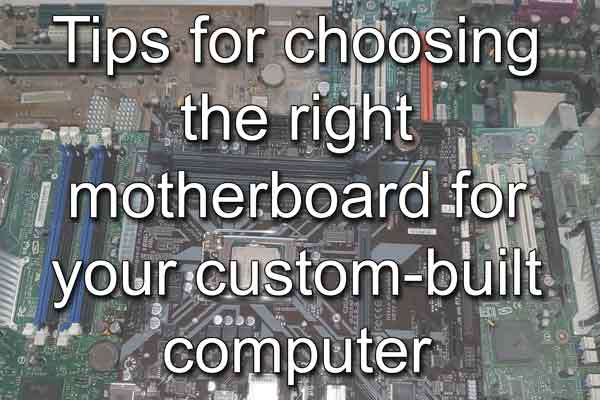
Tips for choosing the right motherboard for your custom-built computer

Choosing the right motherboard can mean the difference between a stable, high-performance system and one prone to crashes and other issues. And depending on what you plan to use it for, the features may and will change.

CPU: The first thing to consider when choosing a motherboard is your CPU (Central Processing Unit). Your motherboard must be compatible with the CPU you plan to use. If you plan to use an Intel CPU, you'll need to choose a motherboard with an LGA socket compatible with your CPU. If you plan to use an AMD CPU, you'll need to choose a motherboard with an AM4 socket compatible with your CPU.

There are times when you might need a BIOS (Basic Input/Output System) update to run a newer CPU. Always check the motherboard manufacturer's website for a list of CPUs that are supported and what version of BIOS it may require.

Now, Intel CPU motherboards do not come with brackets to mount a CPU cooler, but AMD CPU motherboards do. If you decide to go with an AMD CPU, remember that some CPU coolers come with their own backplate, and some use the default AM4 backplate that comes with your AMD motherboard.

If your CPU cooler comes with its own backplate, remember to put the AM4 backplate that comes with your motherboard in a safe location, just in case you need to replace your CPU cooler and the new one requires the original AM4 backplate. Finding a replacement backplate can be time-consuming and a little expensive (around $20 w/ shipping). I have had to order plenty of replacement backplates, as the originals got lost.

Chipset: The chipset is another important factor to consider when choosing a motherboard. The chipset determines what features and capabilities your motherboard will offer. The chipset also affects the performance of your system, as it manages the data flow between the CPU, memory, and peripherals.

Size: Motherboards come in different sizes, ranging from mini-ITX to ATX. The size of the motherboard you choose will determine the size of your computer case. Make sure you choose a motherboard that's compatible with the size of your case.

Tips for choosing the perfect case for your computer

Memory: Memory has always been one of the most vital components next to the CPU. Remember that the memory slots have a maximum amount of memory each can use. You multiply that by the number of memory slots, and you get your maximum usable memory.

You always want to have memory modules that have matching specifications, so it is recommended that you purchase your memory modules in twin or quad packs. That way, you will be assured that all of the memory modules will match.

PCIe Expansion Slots: Expansion slots are another important factor to consider when choosing a motherboard. These slots allow you to add additional components to your system, such as graphics card(s), sound card, or WiFi adapter. Make sure the motherboard you choose has enough PCIe expansion slots (x16, x4, x1) for your needs.

How to add an expansion card to your desktop computer

Storage: The type of storage you use with your motherboard will have a direct impact on the performance. Solid State Drives (SSD) are faster, but Hard Disk Drives (HDD) have larger capacity. There are two type of connections for SSDs (M.2 & SATA) but only one (SATA) for HDDs.

The fastest and most common type of drive is an M.2, with SATA drives coming in second. The typical gaming system has an M.2 drive for the operating system and programs files and an HDD for data storage. Once you decide on what drive(s) (M.2 and/or SATA) and quantity you want to use, you can make sure your motherboard has all of the correct (M.2 / SATA) connections.

I/O Ports: The I/O ports on your motherboard determine what devices you can connect to your system. Make sure the motherboard you choose has enough USB ports, audio ports, and other ports you'll need for your peripherals. It's also important to check if the motherboard has a built-in WiFi or Bluetooth adapter.

Also check the on-board headers for the matching connections for your case. You will want to make sure you have headers for the USB (3.2, 3.1, 2.0) ports, case fans, and lighting features your case may have. It sucks if your case has a USB 3.2 port on the front but your motherboard doesn't have a USB 3.2 header to connect it to.

Power: The majority of ATX-type power supplies have all of the necessary connectors (Modular ATX (24-pin), ATX 12V 8-pin (4x4), Molex, etc.) for almost any motherboard. But to be on the safe side, always check the specifications and connectors for any motherboard you are looking at purchasing.

How to estimate the power required for your custom-built computer

Brand and Warranty: Finally, consider the brand and warranty of the motherboard you choose. Choose a reputable brand that offers good customer support and a solid warranty. This will give you peace of mind knowing that you'll be able to get help if you encounter any issues with your motherboard.

In conclusion, choosing the right motherboard is essential for building a stable, high-performance, custom-built computer. When selecting a motherboard, consider your CPU, chipset, size, memory, PCIe expansion slots, storage, I/O ports, power, and brand reputation. With these tips in mind, you can choose the best motherboard for your custom-built computer, ensuring a smooth and enjoyable computing experience.

How to estimate the power required for your custom-built computer

Updated September 25, 2025

Whether you are building a new computer or replacing/upgrading your existing one, one of the most important considerations is the Power Supply Unit (PSU). PSUs are vital, as they provide the necessary energy for each component to operate efficiently while ensuring system stability and longevity. Here's a comprehensive guide on how to estimate the power required for your custom-built computer.

How to estimate the power required for your custom-built computer

Before diving into calculations, it's essential to understand what contributes to a computer's total power consumption. Each component in your build, such as the CPU, GPU, motherboard, RAM, storage devices, and peripheral components, draws a certain amount of power during operation. The total power consumption of the system will influence the size of the PSU you need to purchase.

List your components

Begin by listing all the components you plan to include in your build. The primary components typically consist of:

  • Central Processing Unit (CPU): The power requirement varies significantly among different models. Check the manufacturer's specifications (Thermal Design Power (TDP)) for this value.
  • Graphic Processing Unit (GPU): This is often the most significant power consumer in a modern gaming PC. Again, manufacturers provide TDP ratings for graphics cards.
  • Motherboard: While motherboards consume less power compared to CPUs and GPUs, it's still necessary to account for this.
  • Memory (RAM): Each stick typically consumes between 2 and 5 watts of power.
  • Storage: SSDs consume less power than HDDs, but still contribute to overall power consumption.
  • Cooling systems: Fans and liquid cooling systems also draw power.
  • Peripherals: Keyboards, mice, and other peripherals (especially lighting effects) can add to the power requirement.

Use an online PSU calculator

Using an online power supply calculator can simplify the process of estimating your total power needs. Various websites, see links below, offer interactive tools where you can input your components. These calculators take into consideration the specifications you provide and offer estimates based on average power consumption, including some headroom for future upgrades and peak loads.

Now, some online power supply calculators can estimate the power requirements given the specifications of the components. You can use these websites to calculate a rough estimate of the amount of power your computer will require. Here are a few online power supply calculators.

Newegg - Power Supply Calculator

PC builds - Power Supply Calculator

Cooler Master - Power Supply Calculator

Once you have a rough estimate of the power requirements for your components, add some extra headroom to ensure stable and reliable performance. A good rule of thumb is to choose a PSU that can provide at least 20 - 30% more power than your estimated requirements.

Calculate total wattage

If you prefer a manual method, follow these steps to calculate your system's wattage:

  1. Find power ratings: Look up the power requirements for each component (generally available on manufacturer websites or retail listings). Write them down.
  2. Total up power consumption: Sum the power ratings from each component.
    For example:
    - CPU: 95 watts
    - GPU: 300 watts
    - Motherboard: 75 watts
    - RAM: 16 watts (2 sticks x 8 watts each)
    - Storage: 10 watts (SSD and HDD combined)
    - Cooling: 20 watts (for 4 fans)
    Total power consumption = 95 + 300 + 75 + 16 + 10 + 20 = 516 watts
  3. Add overhead: It's essential to add a safety margin to ensure stable performance. It is common practice is to add about 20-30% more power on top of your total wattage. This might look like:
    516 watts x 1.3 = 670.8 watts

Therefore, a 750-watt PSU would be a safe choice.

Consider efficiency ratings

When selecting a PSU, consider the efficiency rating, which indicates how well a power supply converts AC power from the wall outlet into DC power for the computer. PSUs are rated based on efficiency standards, such as the 80 PLUS standard. Here are the tiers:

  • 80 PLUS Bronze: 82% efficiency at 20% and 100% load, 85% at 50% load.
  • 80 PLUS Silver: 85% efficiency at 20% and 100% load, 88% at 50% load.
  • 80 PLUS Gold: 87% efficiency at 20% and 100% load, 90% at 50% load.
  • 80 PLUS Platinum: 90% efficiency at 20% and 100% load, 92% at 50% load.
  • 80 PLUS Titanium: 90% efficiency at 10% and 100% load, 94% at 20% load.

Selecting a more efficient PSU can allow you to choose a PSU with slightly lower wattage, as it operates more effectively under load.

Plan for future upgrades

If you plan to upgrade your system in the coming years (e.g., adding more storage or upgrading your GPU), consider purchasing a PSU with a higher wattage than what you currently need. This foresight can save you money in the long run.

Estimating the power required for your custom-built computer is vital for ensuring system stability and efficiency. By carefully listing out your components, using online calculators or manual calculations, taking into account efficiency ratings, and planning for future upgrades, you can select the most suitable PSU for your build. A robust and reliable power supply is the backbone of any custom PC, and making the right choice can enhance not just performance, but also the longevity of your components.

Free computer diagnostics

Repairing a PC can sometimes be expensive, and that is why we offer free basic in-shop diagnostics. Give one of our professional and experienced technicians a call at (602) 795-1111, and let's see what we can do for you.

Check out our reviews

Geeks In Phoenix LLC, BBB Business Review

This business is BBB Accredited

Customer service is #1

Here at Geeks in Phoenix, we take pride in providing excellent customer service. We aim to give the highest quality of service  from computer repair, virus removal, and data recovery.

Bring your computer to us and save

Repairing a computer can be time-consuming. That is why we base our in-shop service on the time we work on your computer, not the time it takes for your computer to work! From running memory-checking software to scanning for viruses, these are processes that can take some time.

Contact us

If you have any questions, please feel free to give us a call at (602) 795-1111  and talk with one of our Geeks. Or you can send us a message from our contact page , and one of our Geeks will get back to you as soon as possible. Or you can stop by and see us. Here are our hours and location.

Like Geeks in Phoenix on Facebook

Follow Geeks in Phoenix on Twitter

Watch Geeks in Phoenix on YouTube