Geeks in Phoenix

Geek Blog


Everything you need to know about Microsoft accounts

In today's digital world, a strong online identity is essential. A Microsoft account serves as a gateway to various services, including Outlook, OneDrive, Microsoft Office, and Xbox Live. In this article, I will cover everything you need to know about a Microsoft account.

Everything you need to know about Microsoft accounts

What is a Microsoft account?

A Microsoft account is an online account that connects you to Microsoft services. It serves as your username and password for services that include Windows 11, Office, and Xbox. It also enables you to synchronize your settings across devices, store files in the cloud with OneDrive, and access personalized services.

How do I get one?

Creating a Microsoft account is a straightforward process:

  1. Visit the signup page: Go to the Microsoft account sign-in page.
  2. Provide basic information: Enter your email address (you can either use an existing email or create a new Outlook.com email) and choose a password.
  3. Verify your identity: You’ll usually need to verify your identity with a code sent to your email or phone number.
  4. Fill in additional information: Include your name, country, and birthdate, then agree to the terms of service and privacy policy.
  5. Complete signup: Finish the registration process by clicking on the signup button.

Which Windows 11 features require a Microsoft account?

Here’s a list of features in Windows 11 that utilize a Microsoft account:

  • Microsoft Store: Access to apps, games, movies, and music; purchases are tied to your Microsoft account.
  • OneDrive integration: Seamless cloud storage for files, photos, and backup options that sync across devices.
  • Microsoft Teams: Integrated chat and video conferencing features that require sign-in with a Microsoft account.
  • Windows Hello: Biometric sign-in and security features that may be enhanced with a Microsoft account.
  • Sync settings: Synchronization of themes, passwords, and other settings across multiple devices using a Microsoft account.
  • Xbox Game Pass and Game Bar: Access to gaming services and features linked to your Microsoft account for game saves and achievements.
  • Family Safety: Managing family accounts, screen time limits, and location sharing through a Microsoft account.
  • Outlook and Calendar: Email and calendar services that require a Microsoft account for full functionality and integration.
  • Search integration: Personalized content and web results based on activity linked to your Microsoft account.

Using a Microsoft account enhances your experience by providing access to these features and enabling synchronization across devices.

What are the pros and cons of a Microsoft account?

Pros of a Microsoft Account

  • Access to a range of services: A Microsoft account provides access to a variety of services, including Outlook email, OneDrive for cloud storage, Office Online, and Xbox Live. This convenience allows users to centralize their online activities under one username and password.
  • Seamless integration: If you use Windows, having a Microsoft account streamlines the user experience, as it allows for automatic syncing of settings, preferences, and files across devices. Whether you're using a desktop, tablet, or smartphone, your personalized experience follows you.
  • Enhanced security features: Microsoft has invested significantly in security features to protect user data. Two-factor authentication, for example, adds an extra layer of security to your account, making unauthorized access more challenging. Furthermore, Microsoft regularly updates its security protocols to keep up with emerging threats.
  • Cloud storage with OneDrive: One of the key advantages of a Microsoft account is access to OneDrive, which provides a limited amount of free cloud storage. This service makes it easy to back up important documents, share files with others, and access your data from anywhere with an internet connection. Moreover, OneDrive integrates seamlessly with Microsoft Office applications, enhancing productivity.
  • Office suite access: With a Microsoft account, users can access Microsoft Office applications online for free via Office Online. This functionality promotes collaboration, as multiple users can work on documents simultaneously. For many users, this is a valuable feature, especially in remote work scenarios.
  • Gaming benefits: For gamers, a Microsoft account is critical for accessing Xbox Live and for syncing game data across multiple devices. Features like cloud saves and the ability to track achievements and friends enhance the overall gaming experience.
  • Personalized experience: A Microsoft account allows for a personalized user experience, including customized news feeds, personalized ads, and tailored recommendations. This level of personalization can enhance the way users interact with Microsoft services.

Cons of a Microsoft Account

  • Privacy concerns: One of the major drawbacks of having a Microsoft account is potential privacy issues. Microsoft, like many other tech companies, collects user data to improve services and personalize experiences. Some users may feel uncomfortable with the extent of data collection and how it's used for targeted advertising.
  • Account lockouts: Users may experience account lockouts, often due to security measures such as suspicious activity detection. While these measures are designed to protect users, they can also be frustrating if you need immediate access to your account and are unable to recover it swiftly.
  • Dependency on Internet access: Although you can work offline with some applications, a significant amount of functionality is tied to Internet access. This dependency may be inconvenient for users who frequently find themselves without a reliable internet connection.
  • Learning curve for new users: For those unfamiliar with Microsoft products or the concept of a centralized account, there may be a learning curve in understanding how to use everything effectively. New users might find the transition from traditional local accounts to a Microsoft account challenging.
  • Account mismanagement risks: If a user fails to manage their Microsoft account adequately, by ignoring password changes, failing to enable two-factor authentication, or not monitoring account activity, they could become vulnerable to hacking or unauthorized access.
  • Cost of premium services: While many services are free, additional features and storage on OneDrive or Office 365 require monthly or yearly subscriptions. These costs can add up over time, especially if users find themselves relying heavily on Microsoft's ecosystem.
  • Limited control over updates and features: With a Microsoft account, users may have limited control over software updates, features, and user interface changes. Microsoft frequently rolls out updates that can alter the user experience, sometimes causing frustration among users who prefer consistency.

How to remove a Microsoft account from Windows 11

Before diving into the removal process, it's important to understand what will happen when you remove a Microsoft account. By deleting it, you'll lose access to services tied to that account, such as OneDrive storage, Xbox Live, and Microsoft Store purchases associated with that account. Additionally, any personalized settings, themes, and app preferences will be lost. Therefore, if you plan to remove your account, consider backing up important data and ensuring that any needed applications are set up with a new account.

Back up your OneDrive files

Before you remove your Microsoft account, you need to take care of OneDrive first. Before uninstalling OneDrive, ensure that any files stored in your OneDrive account are backed up. If you have files that are only stored in OneDrive and you remove the application without backing them up, you risk losing access to those files. To back up your files:

  1. Open File Explorer by pressing Windows logo key Windows logo key + E.
    The OneDrive folder inside of File Explorer
  2. Navigate to the OneDrive folder.
  3. Move any essential files to another folder outside of the OneDrive folder on your local drive.
  4. You can also log into your OneDrive account online to ensure that you have another copy of your files in the cloud, if necessary.

Disconnect OneDrive

Before uninstalling the application, disconnecting your OneDrive account from your Windows 11 device ensures that your files remain safe and are not automatically synced during the removal process. Here’s how to disconnect OneDrive:

  1. Left-click on the OneDrive cloud icon in the system tray (usually located in the lower right corner of your screen).
  2. On the menu that appears, left-click on the gear icon in the upper-right-hand corner.
  3. In the drop-down menu, click on Settings.
    Unlink this PC in OneDrive settings
  4. On the Account tab, click on Unlink this PC.
  5. Confirm the action, and your computer will be disconnected from your OneDrive account.

Once you’ve unlinked your account, the synchronization process will stop, and no further changes will be sent to your OneDrive storage.

Uninstall OneDrive

With your files backed up and your account disconnected, you can proceed to uninstall OneDrive from your computer. Here's how:

  1. Left-click on the Start Windows logo key button to bring up the Start menu.
  2. In the list of pinned apps on the Start menu, left-click on Settings.
  3. In the left-hand column, left-click on Apps.
  4. In the right-hand column, left-click on Installed apps.
  5. Scroll down the list of Installed apps until you come to Microsoft OneDrive.
  6. Left-click the three horizontal dots (more options) on the right side, then select Uninstall.
  7. Confirm any prompts that appear to complete the uninstallation process.

Remove Leftovers (Optional)

Sometimes, even after uninstalling an application, residual files or settings may linger on your system. If you're an advanced user and want a clean removal, you can manually delete these leftovers:

  1. Press the Windows logo key Windows logo key + R to open the Run dialog box.
  2. Type or copy and paste %localappdata% into the Run dialog box and then click OK
  3. Scroll down the list of software manufacturers and double left-click on Microsoft to open that folder.
  4. Look for a OneDrive folder and delete it if it exists.
  5. Open up the Run dialog box again, Windows logo key Windows logo key + R.
  6. This time, type or copy and paste %programdata% and then click OK.
  7. Look for a folder named Microsoft OneDrive and delete it if it exists.

Disable OneDrive Startup (If Necessary)

In some cases, OneDrive may still attempt to start up when you turn on your computer, even after uninstallation. If you're experiencing this, you need to ensure that it’s deactivated in the startup programs:

  1. Right-click on an empty space on the Taskbar and select Task Manager.
  2. Left-click on the Startup apps tab.
  3. Look for any entries related to OneDrive, right-click, and select Disable.

Remove your Microsoft account

Removing your Microsoft account may also require you to change how you log in to Windows 11 from a Microsoft account to a local account. Changing your login from a Microsoft account to a local account can enhance your privacy and give you more control over your settings. To change your login from a Microsoft account to a local account:

  1. Left-click on the Start Windows logo key button to bring up the Start menu.
  2. In the list of pinned apps on the Start menu, left-click on Settings.
  3. In the left-hand column, left-click on Accounts.
  4. In the right-hand column, left-click on Sign-in options.
  5. Look for the option to sign in with a local account instead.
  6. Follow the prompts to create a username and password for your local account.

Once completed, you'll sign in using your new local credentials, and the transition will provide a more personalized experience without relying on cloud features. Just remember to back up any files and settings associated with your Microsoft account before making the change.

A Microsoft account is a powerful tool that centralizes access to a range of Microsoft products and services. Whether you are using it for personal tasks, cloud storage, or gaming, understanding how to create, manage, and secure your account is essential. With the right knowledge, you can maximize the benefits of your Microsoft account and enjoy an integrated digital experience.

By taking advantage of security features, managing your profile effectively, and knowing how to troubleshoot problems, you can ensure that you get the most out of your Microsoft account. So, whether you’re new to Microsoft services or looking to optimize your usage, this guide provides essential information to help you navigate your Microsoft account confidently.

What you can do if you do not want to use OneDrive

Cloud-based storage is fantastic. You can access your data from any location. But what if you do not want your personal data stored on the cloud? What if you just want all of your personal data stored on your local computer only? If that is the case, here is what you can do if you do not want to use Microsoft OneDrive.
What you can do if you do not want to use OneDrive

Microsoft OneDrive is an excellent cloud-based storage solution and can be extremely valuable for backing up data. However, the problem I see with my customers is that most novice Windows users don't know what it is or how they ended up using it.

The explanation is simple: When you create a new user in Windows, whether it is when you first start your new computer or add a user, Windows prompts you to log in with a Microsoft account. When that new user logs in, OneDrive is automatically enabled by default.

There are several different ways to get rid of OneDrive from your computer. You can disable it, unlink it from your computer, or completely uninstall it. But when all is said and done, you may have to manually restore your user shell folders to their original locations (more on that later).

How to unlink OneDrive from your user account

  1. Right-click the OneDrive icon OneDrive iconin the system tray (located at the bottom right corner of the screen).
  2. Select Settings from the context menu that appears.
  3. In the Microsoft OneDrive dialog box, go to the Account tab.
  4. Left-click on the Unlink this PC shortcut.
  5. A warning message appears telling you that locally stored files will remain in place while online versions will be deleted. Left-click on the Unlink account button.
  6. The Set up OneDrive dialog box should appear. Left-click the X in the upper right-hand corner to close the dialog box.

Now that OneDrive is no longer syncing your data, you can either disable OneDrive from starting or uninstall it. However, you might notice that some of your user shell folders (Desktop, Documents, and Pictures) were not returned to their original locations. We will take a look at those later in this article.

How to disable OneDrive in Windows

  1. Right-click on the Start Windows logo key button to bring up the Power User menu.
  2. Left-click on Task Manager.

or

  1. Press CTRL + ALT + DEL all at the same time.
  2. From the security screen that appears, left-click on Task Manager.

or

  1. Right-click on an empty area of the Taskbar.
  2. On the context menu that appears, left-click on Task Manager.

Sometimes, the first time you run Task Manager, it will only display running apps. You have to left-click the More details arrow to view all the tabs. The location of the tabs varies from Windows 10 (across the top) to Windows 11 (down the left side).

Once the tabs are displayed, left-click on Startup (Windows 10) or Startup apps (Windows 11). From here, all you have to do is highlight OneDrive and select the Enable / Disable button. Restart your computer so the changes take effect.

How to uninstall Microsoft OneDrive

There are two (2) ways to uninstall OneDrive: the Settings app or the Control Panel.

How to uninstall Microsoft OneDrive using the Settings app

Windows 11

  1. Left-clicking on the Start button Windows logo to bring up the Start menu.
  2. In the list of pinned apps on the Start menu, left-click on Settings.
  3. In the left-hand column, left-click on Apps.
  4. In the right-hand column, left-click on Installed apps.
  5. The right-hand column displays a list of all the installed apps. Find Microsoft OneDrive, left-click on the three (3) horizontal dots (...) on the right, and select Uninstall.

Windows 10

  1. Left-click on the Start Windows logo menu and select Settings (the gear icon).
  2. Left-click on Apps.
  3. In the right-hand column, Apps and features will be displayed. Left-click on Microsoft OneDrive and select Uninstall.

How to uninstall Microsoft OneDrive using the Control Panel

Windows 11

  1. Left-click on the Start Windows logo key button to bring up the Start menu.
  2. In the upper right-hand corner of the Start menu, left-click on All apps.
  3. Scroll down the list of programs and left-click on Windows Tools.
  4. Double left-click on the Control Panel.

Windows 10

  1. Left-click on the Start Windows logo button to bring up the Start menu.
  2. Scroll down the list of programs until you get to Windows System, and then left-click on it to expand it.
  3. Left-click on Control Panel.

By default, the Control Panel opens up in the category view but can be changed to large or small icons. A pull-down menu in the top-right corner labeled View by: allows you to change the view.

  • If viewing the Control Panel by Category, left-click on Uninstall a program under Programs.
  • If viewing by Large/Small Icons, left-click Programs and Features.

A list of all the programs installed will appear. Left-click on Microsoft OneDrive and select the Uninstall button at the top of the list of programs.

How to restore the location of your user shell folders back to default

Now that you have either disabled, unlinked, or uninstalled OneDrive, you must check and see where your user shell folders are located. By default, OneDrive moves your Desktop, Documents, and Pictures folders to a folder under your user profile (C:\Users\YourUserName\OneDrive).

The easiest way to check is to open File Explorer by left-clicking the manilla folder icon on the Taskbar or pressing the Windows logo key Windows logo key + E. Right-click on any of the Quick access links and left-click on Properties from the context menu that appears. Left-click on the Location tab and check where that folder is located.

If it points to the OneDrive folder inside your user profile (C:\Users\YourUserName\OneDrive), you have two choices: You can leave them right where they are or change them back to default.
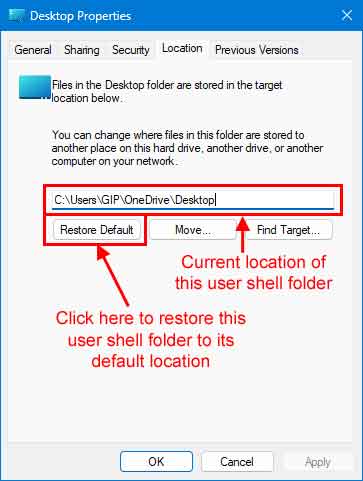
Location tab on the properties of a Desktop special folder

While checking the properties of your user shell folders, you can also restore them to their default location(s). Just left-click the Restore Default button in the lower left-hand corner of the folder properties.

You may get a dialog box pop-up that tells you that the folder you are trying to move does not exist in the new location and asks if you want to create it. Just left-click on Yes and proceed to restore the folder its original location.

At this point your user shell folders should be back in their original default location(s). But if you encounter an error when trying to restore your user shell folders, something similar to Can't move the folder because there is a folder in the same location that can't be redirected. Access is denied. then you will need to modify the Registry.

The truth about user shell folders is that they are just entries in the Registry and can be modified using the Registry Editor. But remember that editing the registry incorrectly can cause your computer to not operate correctly and possibly not even boot up, so be very careful when editing the registry.

If you do not feel comfortable editing the registry, don't hesitate to contact a local computer repair shop, like Geeks in Phoenix, for assistance. The first thing you need to do is open the Registry Editor.

Remember that changing the location of user shell folders in the registry does not actually move your files back to that location. You will have to manually move them from the OneDrive folder to the location you specify in the registry.

How to restore the location of your user shell folders using the Registry Editor

  1. Bring up the Run dialog box by either:
    Pressing the Windows logo key Windows logo key + R
    or
    Right-click on the Windows logo Windows logo key on the Start Menu or press the Windows logo key Windows logo key + X and then select Run
  2. In the Run dialog box that appears, type regedit and select OK. If you're prompted for an administrator password or confirmation, type the password or provide confirmation.

Once you open the Registry Editor, let's backup the registry first.

  1. With the Registry Editor open, highlight Computer in the left-hand column to backup the complete registry.
  2. Left-click on the File pull-down menu and left-click on Export.
  3. Select the location and a descriptive file name for the backup file, then left-click on Save.

Now, let's change the location of your user shell folders in the Registry.

  1. Verify that the folders you want to redirect to (Desktop, Documents, Pictures, etc.) currently exist inside your user profile folder (C:\Users\YourUserName). If they do not, then you will need to create them before proceeding.
  2. With the Registry Editor open, navigate to the following key:
    HKEY_CURRENT_USER\Software\Microsoft\Windows\CurrentVersion\Explorer\User Shell Folders
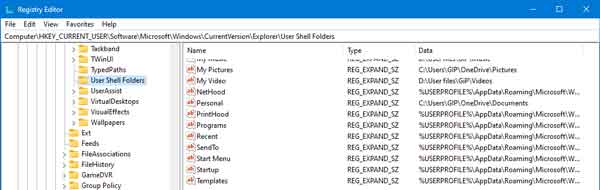
    The Registry Editor open to the user shell folders registry keys
  3. In the right-hand column, right-click on the Name of the value you want to change and select Modify... from the context menu.
  4. Enter either the default value for that folder from the table below or the path to the actual folder (C:\Users\YourUserName\Documents). Make sure the actual folder exists before changing the folder key.
  5. Log off or restart your computer for the registry change(s) to take effect.

Default user shell folder registry values

Registry key name Folder Data (default value)
{374DE290-123F-4565-9164-39C4925E467B} Downloads %USERPROFILE%\Downloads
Desktop Desktop %USERPROFILE%\Desktop
Favorites Favorites %USERPROFILE%\Favorites
My Music Music %USERPROFILE%\Music
My Pictures Pictures %USERPROFILE%\Pictures
My Video Videos %USERPROFILE%\Videos
Personal Documents %USERPROFILE%\Documents

Free computer diagnostics

Repairing a PC can sometimes be expensive, and that is why we offer free basic in-shop diagnostics. Give one of our professional and experienced technicians a call at (602) 795-1111, and let's see what we can do for you.

Check out our reviews

Geeks In Phoenix LLC, BBB Business Review

This business is BBB Accredited

Customer service is #1

Here at Geeks in Phoenix, we take pride in providing excellent customer service. We aim to give the highest quality of service  from computer repair, virus removal, and data recovery.

Bring your computer to us and save

Repairing a computer can be time-consuming. That is why we base our in-shop service on the time we work on your computer, not the time it takes for your computer to work! From running memory-checking software to scanning for viruses, these are processes that can take some time.

Contact us

If you have any questions, please feel free to give us a call at (602) 795-1111  and talk with one of our Geeks. Or you can send us a message from our contact page , and one of our Geeks will get back to you as soon as possible. Or you can stop by and see us. Here are our hours and location.

Like Geeks in Phoenix on Facebook

Follow Geeks in Phoenix on Twitter

Watch Geeks in Phoenix on YouTube