Geeks in Phoenix

Geek Blog


My Geek Notes 2

As users explore Windows 11, mastering keyboard shortcuts is crucial for boosting productivity and efficiency. With its sleek interface and advanced features, Windows 11 offers keyboard shortcuts that can streamline your workflow. In this Geek Notes, we’ll explore some of the most useful keyboard shortcuts in Windows 11 that can help you leverage the full potential of your system.

My Geek Notes 2

General

These keyboard shortcuts are simple and have been included in Windows for many versions, yet you would be surprised how many people do not know about them.

  • Ctrl + C: Copy the highlighted text or image to the Clipboard.
  • Ctrl + X: Cut the highlighted text or image to the Clipboard.
  • Ctrl + V: Paste the text or image from the Clipboard.
  • Ctrl + Z: Undo the last procedure.
  • Alt + Tab: Switch between open applications.

And if you want to store more than one item in the Clipboard, enabling the Clipboard history allows you to store multiple items and access them easily.

  • Windows logo key Windows logo key + V: This opens the Clipboard history. Once enabled, this shortcut lets you view and use items you recently copied. To enable the Clipboard history, go to Settings > System > Clipboard.

Productivity

Windows 11 features a host of shortcuts that can enhance your productivity while you work.

  • Windows logo key Windows logo key + E: This opens File Explorer.
  • Windows logo key Windows logo key + R: This launches the Run dialog box.
  • Windows logo key Windows logo key + D: This keyboard shortcut shows or hides the Desktop.
  • Legacy context menu: If you are looking for the more detailed right-click menu, hold the Shift key while right-clicking a file to bypass the simplified Windows 11 version and see all options immediately.

Accessibility

Windows 11 comes with several features designed to enhance accessibility. Use these shortcuts to improve ease of access.

  • Windows logo key Windows logo key + U: This opens the Accessibility section in Settings.
  • Windows logo key Windows logo key + + (plus): This keyboard shortcut opens Magnifier.
  • Windows logo key Windows logo key + Esc: This keyboard shortcut closes Magnifier.
  • Windows logo key Windows logo key + Ctrl + Enter: This keyboard shortcut turns on or off Narrator.

Miscellaneous

Windows 11 has some cool keyboard shortcuts that can save time and handle miscellaneous tasks.

  • Windows logo key Windows logo key + Ctrl + Shift + B: This keyboard shortcut restarts your graphics driver without requiring a full PC reboot.
  • Windows logo key Windows logo key + Ctrl + Q: This keyboard shortcut opens the built-in remote assistance app Quick Assist.
  • Windows logo key Windows logo key + Alt + R: This keyboard shortcut opens the built-in Game Bar and starts recording your screen.

Windows 11 is packed with features designed to improve efficiency, and understanding keyboard shortcuts is key to unlocking that potential. By incorporating these shortcuts into your daily routine, you can navigate the operating system more fluidly, manage your windows effectively, and even enhance your productivity. These tips are just the beginning; as you become more familiar with the shortcuts, you’ll find even more ways to work smarter, not harder.

For a complete list of all the keyboard shortcuts you can use with Windows 11, follow the links below.

Windows logo key shortcuts for Windows 11

General Windows keyboard shortcuts

Windows dialog box keyboard shortcuts

How to get to and use the Run dialog box in Windows

Updated April 15, 2024

There may be a time when you need to run a program in Windows that does not have a shortcut to it. Usually, this program is not often used. So here is how to start an application using the Run dialog box.
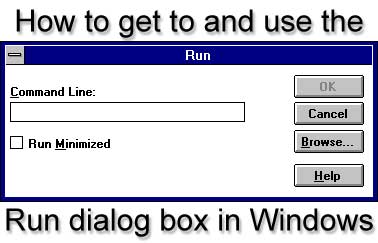
How to get to and use the Run dialog box in Windows

The Run dialog box is for running programs that you don't necessarily use that often and do not have a shortcut. These programs may be system applications or downloaded installation programs.

There are two (2) ways to use the Run dialog box. If you know the name of the application you want to start, type it into the Run dialog box and click OK.

For example, if you have Microsoft Word installed on your computer, you can type Winword (the actual name of Microsoft Word) in the Run dialog box and click OK. Microsoft Word will then start. That is because the program directory is in the Path (it is an environmental variable). The Windows system directory is in the Path by default.

If your program is not in the Path (the system variable used to locate executable programs), you must click Browse and manually find the program you want to start. Once you have the program's name in the Run dialog box, click on OK.

Now, bringing up the Run dialog box is relatively simple. The way you get to it is different in each version of Windows, but there is one keyboard shortcut that works for all versions.

Windows logo key Windows logo key + R

Here are all the ways to access the Run dialog box in the different versions of Windows.

How to bring up the Run dialog box in Windows 11
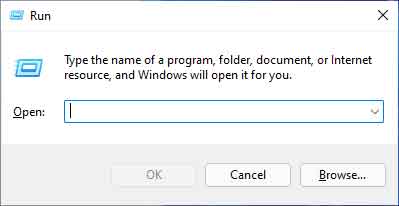
The Run dialog box in Windows 11

  1. Left-click on the magnifying glass to the right of the Start button to bring up the Search dialog box.
  2. Type Run into the Search box and left-click on the app Run.

Or

  1. Left-click on the Start button to bring up the Start menu.
  2. In the upper right-hand corner of the Start menu, left-click on All apps.
  3. Scroll down the list of programs and left-click on Windows Tools.
  4. Left-click on Run.

Or

  1. Right-click on the Start menu to bring up the Power User menu.
  2. Left-click on Run.

Or

  1. Press the Windows logo key Windows logo key + X to bring up the Power User menu.
  2. Press the R key.

Or

  1. Press the Windows logo key Windows logo key + R.

How to bring up the Run dialog box in Windows 10
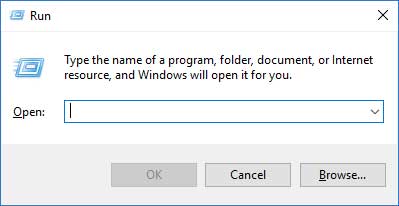
The Run dialog box in Windows 10

  1. Type Run in the Search box (Cortana) on the right side of the Start button.
  2. Left-click on Run in the search results.

Or

  1. Left-click on the Start menu.
  2. Scroll down the list of programs until you come to the Windows System folder.
  3. Left-click on the Windows System folder to expand it.
  4. Left-click on Run.

Or

  1. Right-click on the Start menu to bring up the Power User menu.
  2. Left-click on Run.

Or

  1. Press the Windows logo key Windows logo key + X to bring up the Power User menu.
  2. Press the R key.

Or

  1. Press the Windows logo key Windows logo key + R.

How to bring up the Run dialog box in Windows 8.1
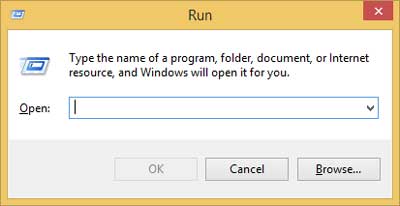
The Run dialog box in Windows 8.1

  1. Left-click on the Start button.
  2. When the Start screen appears, type Run. It will automatically bring up the Search dialog box with Run in the search field, and the results will appear below it.
  3. Left-click on Run.

Or

  1. Right-click on the Start button to bring up the Power User menu.
  2. Left-click on Run.

Or

  1. Press the Windows logo key Windows logo key + X to bring up the Power User menu.
  2. Press the R key.

Or

  1. Press the Windows logo key Windows logo key + R.

How to bring up the Run dialog box in Windows 7
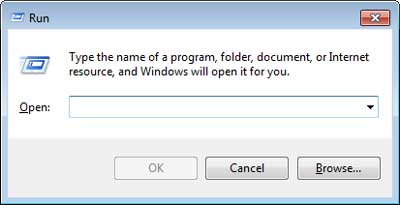
The Run dialog box in Windows 7

  1. Left-click on the Start menu.
  2. Navigate to All Programs > Accessories.
  3. Left-click on Run.

Or

  1. Left-click on the Start menu.
  2. Type Run in the search box right above the Taskbar.
  3. Left-click on Run in the search results.

Or

  1. Press the Windows logo key Windows logo key + R.

Free computer diagnostics

Repairing a PC can sometimes be expensive, and that is why we offer free basic in-shop diagnostics. Give one of our professional and experienced technicians a call at (602) 795-1111, and let's see what we can do for you.

Check out our reviews

Geeks In Phoenix LLC, BBB Business Review

This business is BBB Accredited

Customer service is #1

Here at Geeks in Phoenix, we take pride in providing excellent customer service. We aim to give the highest quality of service  from computer repair, virus removal, and data recovery.

Bring your computer to us and save

Repairing a computer can be time-consuming. That is why we base our in-shop service on the time we work on your computer, not the time it takes for your computer to work! From running memory-checking software to scanning for viruses, these are processes that can take some time.

Contact us

If you have any questions, please feel free to give us a call at (602) 795-1111  and talk with one of our Geeks. Or you can send us a message from our contact page , and one of our Geeks will get back to you as soon as possible. Or you can stop by and see us. Here are our hours and location.

Like Geeks in Phoenix on Facebook

Follow Geeks in Phoenix on Twitter

Watch Geeks in Phoenix on YouTube