In the past year or so, I have been troubleshooting more laptop computers unable to keep a stable wireless network connection. The laptops will connect to the Internet, and within a minute, they automatically disconnect. So here is how to troubleshoot a laptop wireless network connection.
Quite often, performing standard network troubleshooting can fix the issue. But there are other times that it does not. But the one thing they all have in common is all of the WiFi adapters have Bluetooth included.
The first thing I look at when a customer tells me their wireless (WiFi) network connection keeps dropping is the power settings for the adapter. The default power setting for network adapters allows Windows to turn them off to save power. To change this setting, open Device Manager and locate the Network adapters section.
How to bring up the Device Manager in Windows 11
- Left-click on the Start button
 to bring up the Start menu.
- In the upper right-hand corner of the Start menu, left-click on All apps.
- Scroll down the list of programs and left-click on Windows Tools.
- Left-click on Computer Management.
- Under Commuter Management (Local), left-click on Device Manager.
or
- Right-click on the Start button to bring up the Power User menu.
- From the context menu that appears, left-click on Device Manager.
How to bring up the Device Manager in Windows 10
- Left-click on the Start button to bring up the Start menu.
- Scroll down the list of apps and left-click on Windows Administrative Tools to expand the folder.
- Left-click on Computer Management.
- Under Computer Management (Local), left-click on Device Manager.
or
- Right-click on the Start button to bring up the Power User menu.
- From the context menu that appears, left-click on Device Manager.
Once you have Device Manager open, scroll down the list of devices until you reach Network adapters. Double left-click on the Network adapters category to expand it.
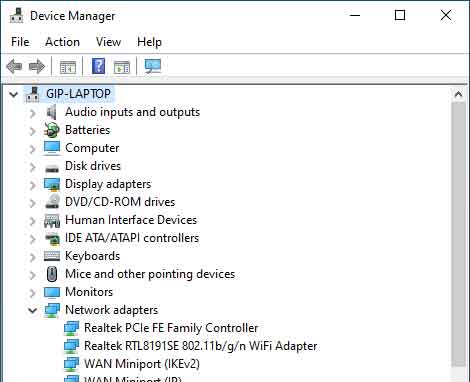
Double-click on the adapter you want to change to bring up its properties.
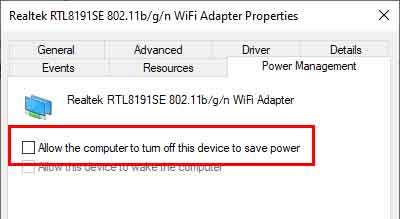
Select the Power Management tab and make sure the Allow the computer to turn off this device to save power is unchecked.
If changing the power settings on the wireless (WiFi) network adapter does not fix the problem, the next step would be resetting it. This is a simple procedure that can drastically improve your network connection. Resetting the network adapter(s) in Windows 10 and Windows 11 is the same, but getting to the simple way of doing it is different.
How to reset your network adapter in Windows 11
How to reset your network adapter in Windows 10
If resetting your network adapter(s) does not fix the problem with your wireless (WiFi) network connection dropping, the next step would be reinstalling the wireless (WiFi) network adapter. You have to get back into the Device Manager to perform this task.
Once you have Device Manager open, scroll down the list of devices until you reach Network adapters. Double left-click on the Network adapters category to expand it.
This time find the wireless (WiFi) network adapter in the list that appears that you want to remove and reinstall. Right-click on that device and select Uninstall device from the context menu that appears. A dialog box will appear, warning you about uninstalling the device. If the uninstall dialog box has the option to Delete the driver software for the device, go ahead and select that option.
If your laptop has WiFi and Bluetooth, it is also recommended to uninstall the Bluetooth device. Follow the same procedure inside of Device Manager for Bluetooth as you did for Network adapters.
When you are all done uninstalling devices, restart your computer. Once your computer restarts, Windows will automatically reinstall the device driver(s) with the factory defaults.
Now if none of the previous steps helped your wireless (WiFi) network connection from disconnecting automatically, there is a last resort option that is guaranteed to work.
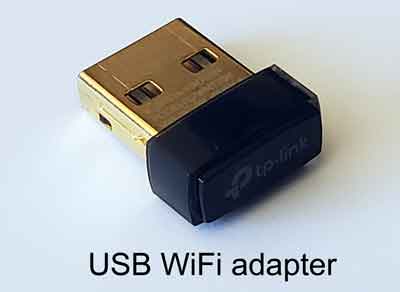
It is a USB WiFi adapter. I know what you are thinking. Why not just replace the existing WiFi card? You could find a replacement WiFi card and have to open up your laptop to change it out.
Or you could get a USB WiFi adapter, plug it in, and be ready to surf the Internet in seconds. When given a choice between the two (2) options, all of my customers have chosen the USB WiFi adapter with no complaints of dropped Internet connections.
dc947cbb-edff-4fff-aade-45873a29e29b|1|5.0|96d5b379-7e1d-4dac-a6ba-1e50db561b04