Geeks in Phoenix

Geek Blog


How to fix Windows 11 file sharing issues

Windows 11 has introduced several enhancements, but like any operating system, it can encounter its fair share of challenges. One common problem users experience is file sharing issues. This can be frustrating, especially when collaborating with others or transferring files between devices within a network. Here is how to resolve Windows 11 file sharing issues.

How to fix Windows 11 file sharing issues

If you're experiencing difficulties with file sharing in Windows 11, don’t worry. This article will guide you through various troubleshooting methods and help you resolve these issues effectively.

Check your network connection

Before diving into specific fixes, ensure that your network connection is stable and reliable. File sharing requires a solid network connection, whether you're using Wi-Fi or Ethernet. Check your connection by navigating to the Network icon in the taskbar and ensuring you’re connected. If you notice issues, try restarting your router or switching to a different network.

Check your network properties

You should check whether the network you are connected to is Public or Private. Windows 11 has a tendency to make new or unknown networks public, which can turn off file and printer sharing on that connection. To check your network properties:

  1. Left-click on the Start Windows logo key button to bring up the Start menu.
  2. In the list of pinned apps on the Start menu, left-click on Settings (gear icon).
  3. In the left-hand column, left-click on Network & internet.

Along the top of the right-hand column, the network you are currently connected to is listed. Check under Properties for the type of network. If it says Public network, left-click on it and change it to Private network.

Enable file and printer sharing

Windows 11 might have file sharing disabled by default. To enable it:

  1. Left-click on the Start Windows logo key button to bring up the Start menu.
  2. In the list of pinned apps on the Start menu, left-click on Settings (gear icon).
  3. In the left-hand column, left-click on Network & internet.
  4. In the right-hand column, left-click on Advanced network settings.
  5. In the right-hand column, left-click on Advanced sharing settings.
  6. Under Private networks, turn on File and printer sharing.

This ensures your device can share files with others on the network.

Check the sharing settings of the folder

If you've enabled file and printer sharing, the next step is to check the specific folder's sharing permissions. Here's how:

  1. Right-click the folder you wish to share and left-click on Properties.
  2. Navigate to the Sharing tab.
  3. Left-click on Share… and select the users you want to share the folder with or select Everyone for broader access.
  4. Adjust the permission level from the drop-down menu (Read or Read/Write).
  5. Left-click Share, then Done.

Ensure that the folder is correctly shared with the appropriate permissions.

Disable password protected sharing

If you are facing issues with accessing shared files, you might want to turn off password-protected sharing, which can hinder access:

  1. Left-click on the Start Windows logo key button to bring up the Start menu.
  2. In the list of pinned apps on the Start menu, left-click on Settings (gear icon).
  3. In the left-hand column, left-click on Network & internet.
  4. In the right-hand column, left-click on Advanced network settings.
  5. In the right-hand column, left-click on Advanced sharing settings.
  6. Under the All Networks section, find Password protected sharing and turn it off.

Keep in mind that this option may compromise security, so use it only if necessary.

Check network discovery

Network discovery must be enabled for your PC to see other devices on the network and be seen by them:

  1. Left-click on the Start Windows logo key button to bring up the Start menu.
  2. In the list of pinned apps on the Start menu, left-click on Settings (gear icon).
  3. In the left-hand column, left-click on Network & internet.
  4. In the right-hand column, left-click on Advanced network settings.
  5. In the right-hand column, left-click on Advanced sharing settings.
  6. Under the Private Networks section, find Network discovery and turn it on.

This step allows your computer to detect other devices on the network and vice versa.

Update network drivers

Sometimes, outdated or corrupted network drivers can cause issues with file sharing. There are two (2) ways of updating your network drivers: Download from the manufacturer's website or use Device Manager. To obtain the latest drivers, refer to the manufacturer's website first, and then use Device Manager as a secondary source.

Via the manufacturer’s website

You can download the latest drivers directly from the manufacturer’s website for more control over installation options.

Via Device Manager

  1. Right-click on the Start Windows logo key button and select Device Manager.
  2. Expand the Network adapters section.
  3. Right-click your network adapter and select Update driver.
  4. Select Search automatically for drivers.

Restart your computer after updating driver(s) to ensure the changes take effect.

Use the Network and Internet troubleshooter

Windows 11 has built-in troubleshooters that can automatically fix common issues:

  1. Left-click on the Start Windows logo key button to bring up the Start menu.
  2. In the list of pinned apps on the Start menu, left-click on Settings (gear icon).
  3. In the left-hand column, left-click on System.
  4. In the right-hand column, left-click on Troubleshoot.
  5. In the right-hand column, left-click on Other troubleshooters.
  6. In the right-hand column, left-click on the Run button on the right end of Network and Internet.

Follow the prompts to identify and resolve any issues.

Check Firewall Settings

Your firewall settings can also prevent file sharing from working correctly:

  1. Left-click on the Start Windows logo key button to bring up the Start menu.
  2. In the upper right-hand corner of the Start menu, left-click on All apps.
  3. Scroll down the list of programs and left-click on Windows Tools.
  4. Left-click on Control Panel.
  5. If viewing the Control Panel by Category, left-click on System and Security, then Windows Defender Firewall. If viewing by Large/Small Icons, left-click on Windows Defender Firewall.
  6. In the left-hand column, left-click on Allow an app or feature through Windows Defender Firewall.
  7. Ensure that File and Printer Sharing is allowed for Private networks.

If necessary, temporarily turn off the firewall to see if it resolves the issue, but remember to enable it afterward.

Reset network settings

If all else fails, resetting your network settings can often resolve persistent issues:

  1. Left-click on the Start Windows logo key button to bring up the Start menu.
  2. In the list of pinned apps on the Start menu, left-click on Settings (gear icon).
  3. In the left-hand column, left-click on Network & internet.
  4. In the right-hand column, left-click on Advanced network settings.
  5. In the right-hand column, left-click on Network reset.
  6. Left-click on Reset now. Windows 11 will automatically restart your computer.

This action will remove and reinstall all your network adapters and reset the network settings to their default values.

File sharing issues in Windows 11 can stem from various sources, including network settings, sharing permissions, or even system components. By following the steps outlined above, you should be able to identify and resolve these issues, enabling seamless file sharing between devices.

How to share a folder on a private network in Windows 10

Updated March 10, 2025

There may come a time when you want to share some files with someone on your private network. Maybe a document, spreadsheet, or a picture of your favorite pet. Here's how to share a folder across your private network in Windows 10.
How to share a folder on a private network in Windows 10

Note: Do not set up a shared folder if your computer is a laptop and you use public WiFi Internet access at coffee shops, airports, etc.! The risk of being hacked and having the security of your laptop compromised is too high. These instructions are only for computers that are attached to private networks.

It may seem like a fairly easy thing to do to share a folder, but it can quickly become a problem. So what I am going to do is to go the steps of sharing a folder on a private network in Windows 10. Then we'll look at some of the things that may cause a problem. Let's get started.

The first thing we need to do is open File Explorer. There are several different ways to do this. You can:

  • Left-click on the File Explorer icon on the Taskbar (manilla folder).
  • Type File Explorer in the Search box and left-click on File Explorer in the search results.
  • Right-click on the Start button and left-click on File Explorer from the Power User menu.
  • Press the Windows logo key Windows logo key + E.

Once you have File Explorer open, you need to find the folder you want to share. Navigate to This PC in the left-hand column, then to the local disk drive (usually C:\), then to the folder you want to share.

Remember that you cannot share a complete drive (like C:\), only folders on it. You also cannot share mapped network folders either. You can only share folders located on your computer. For this demonstration, I am going to use a folder named Shared Folder.

I have located the Shared Folder on my Local Disk C:\ drive, and I'm going to right-click on it and select Properties.
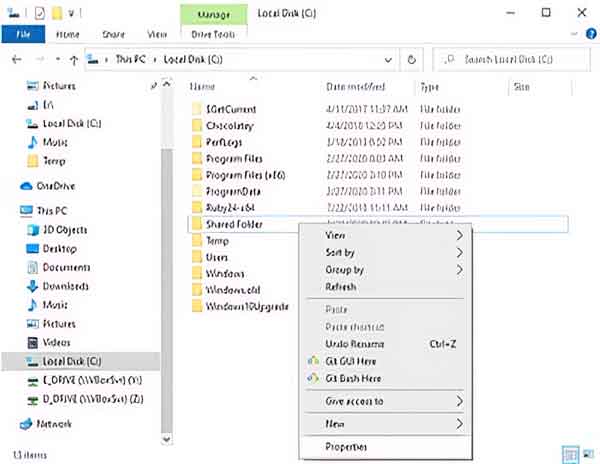
View of context menu for shared folder inside of File Explorer
I'm going to left-click on the Sharing tab
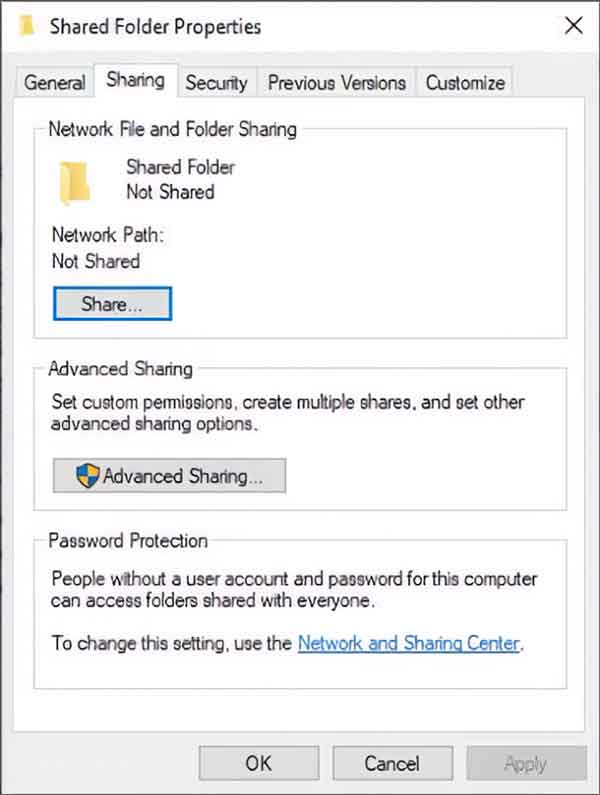
View of sharing tab for shared folder properties
and left-click on the Share button.
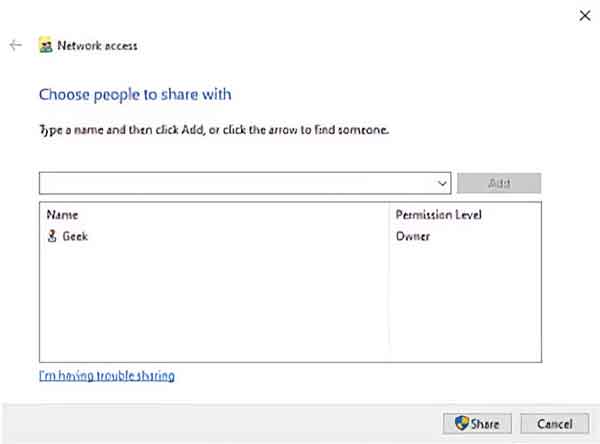
View of network access dialog box for shared folder
This brings up a Network access dialog box.

Your username should already be there with Owner permissions. You can keep just your username in the permissions box, but anyone trying to access that folder will need to have your username and password get into it. If you don't use a password to log into your computer (local account), then you'll have to create a new user on your computer.

But if you want to share the files and aren't worried about anybody seeing them, you can just let Everyone have access. By giving Everyone access, you don't have to have a password to get into the folder. But you will have to choose if you want Everyone to have Read or Read/Write permissions.

Either way, left-click the pull-down menu and select Everyone or Create a new user. If you decide to create a new user, the User Account dialog box appears. Left-click on Manage another account. Select Add a new user in PC settings on the next dialog box that appears. Then, left-click on the plus (+) sign next to Add someone else to this PC and fill out the following forms.

Once you have another username in the Network access dialog box and have chosen the permission level,
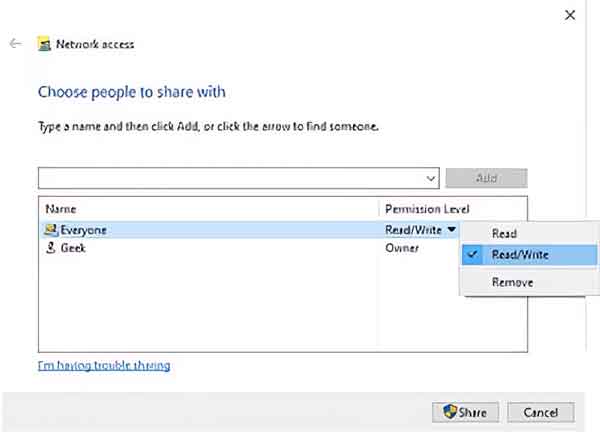
View of network access dialog box for shared folder with everyone selected
left-click on the Share button in the lower right-hand corner. Then, you will get a confirmation that the folder has been shared. Left-click on the Done button in the lower right-hand corner.

You are ready to go. You can either close the folder properties dialog box or add more sharing options like multiple share names or custom permissions using the Advanced Sharing button. But for basic folder sharing, you are all set.

Now let's find out if we can see the shared folder on your private network. You will need the name of your computer for this next step. Right-click on the Start menu and left-click on System on the Power User menu. Make a note of the device name in the right-hand column.

Next, go to another computer that is on the same private network and bring up File Explorer using the steps outlined earlier in this article. This time, instead of expanding the This PC folder in the left side column, we want to go down and left-click on the Network folder.

If you get a warning across the top of the File Explorer that says Network discovery is not turned on, left-click on it to activate it. Sometimes, Windows 10 will mistakenly classify a private network as public. If you get a warning that the network you are on is not a private network, select the Make this network private.

Your computer's name should now appear under the Computer category of Network. If it does, double left-click on it, and you should now see the folder you shared and all of the files inside of it.

If you don't see your computer listed under Network, there are a couple of things you should check on your computer. The first thing to look for is a third-party firewall, like Norton or McAfee, that might block access.

If you granted Everyone access to your shared folder, you can turn off password protected sharing under advanced sharing settings. Just right-click on the Start menu and left-click on Network Connections on the Power User menu. In the right-hand column left-click on Network and Sharing Center. On the screen that appears, left-click on Change advanced sharing settings.

Under All Networks find Password protected sharing and select Turn off password protected sharing. Go back to the other computer and try to access the shared folder on your computer under Networks. You should be able to view and open all of the files inside of it.

Free computer diagnostics

Repairing a PC can sometimes be expensive, and that is why we offer free basic in-shop diagnostics. Give one of our professional and experienced technicians a call at (602) 795-1111, and let's see what we can do for you.

Check out our reviews

Geeks In Phoenix LLC, BBB Business Review

This business is BBB Accredited

Customer service is #1

Here at Geeks in Phoenix, we take pride in providing excellent customer service. We aim to give the highest quality of service  from computer repair, virus removal, and data recovery.

Bring your computer to us and save

Repairing a computer can be time-consuming. That is why we base our in-shop service on the time we work on your computer, not the time it takes for your computer to work! From running memory-checking software to scanning for viruses, these are processes that can take some time.

Contact us

If you have any questions, please feel free to give us a call at (602) 795-1111  and talk with one of our Geeks. Or you can send us a message from our contact page , and one of our Geeks will get back to you as soon as possible. Or you can stop by and see us. Here are our hours and location.

Like Geeks in Phoenix on Facebook

Follow Geeks in Phoenix on Twitter

Watch Geeks in Phoenix on YouTube